
See DICOM Burner in Action
A closer look at the free DICOM burner software medical professionals use to query PACS servers, burn DICOM studies to CD/DVD, and copy them to USB drives.
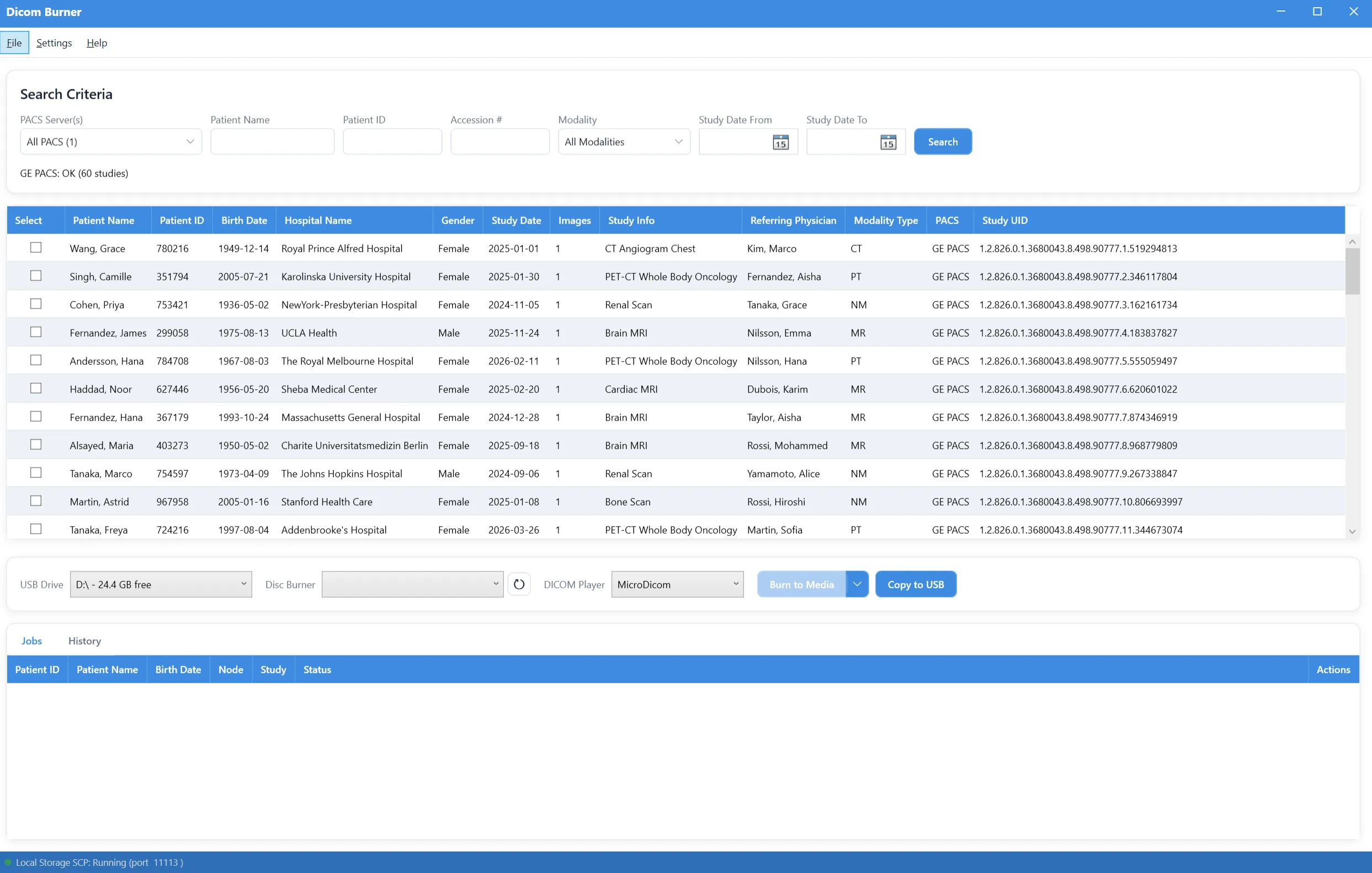
Search PACS servers and browse study results
Query any configured PACS server by patient name, patient ID, modality, or study date range. Results show patient demographics, study info, and modality for every matching study, with checkboxes for burning or copying multiple studies at once.
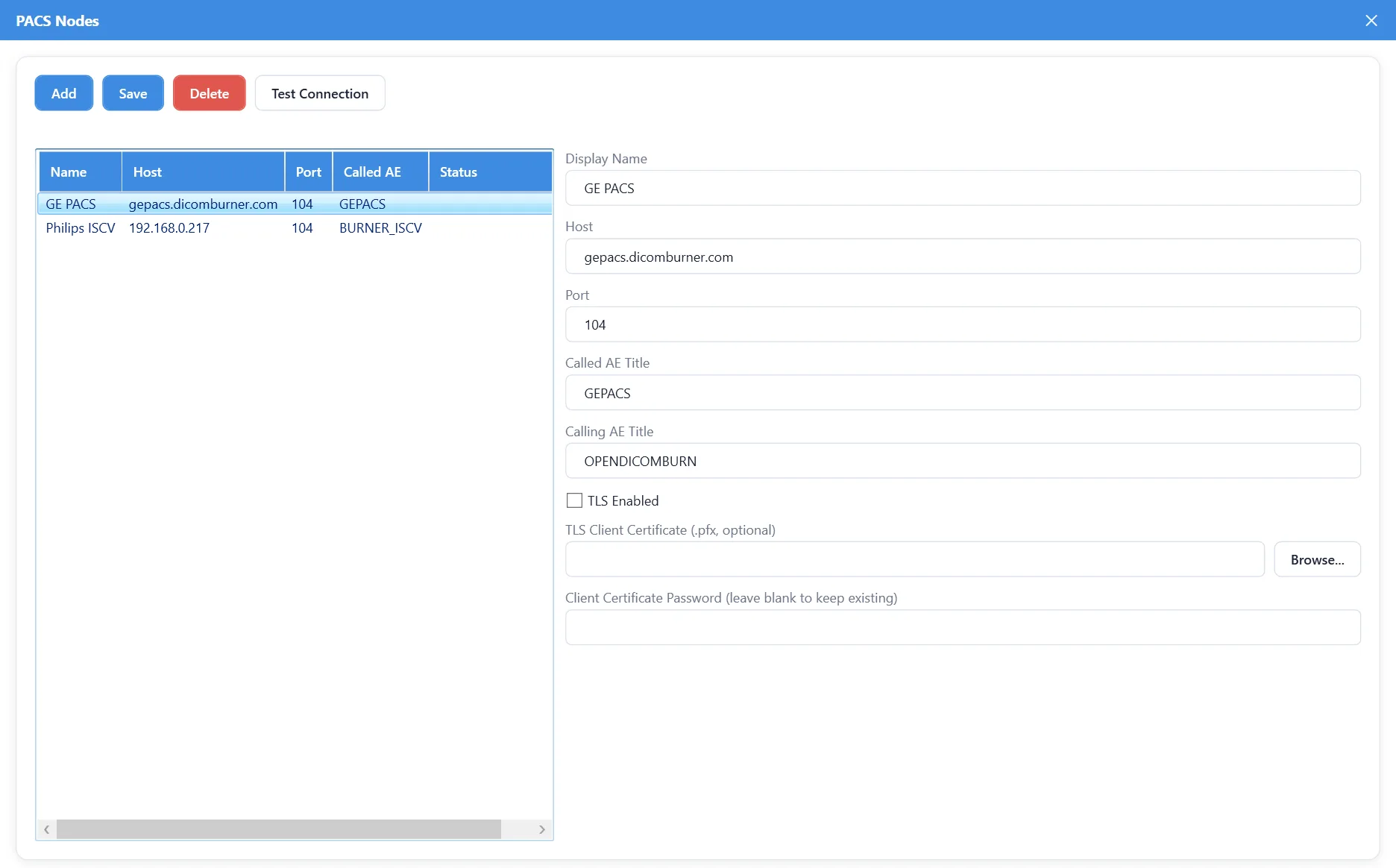
Configure multiple PACS servers
Add and manage as many PACS/DICOM servers as you need, each with its own host, port, Called/Calling AE Title, and optional TLS client certificate. Test any server with a one-click C-ECHO connection check before relying on it.
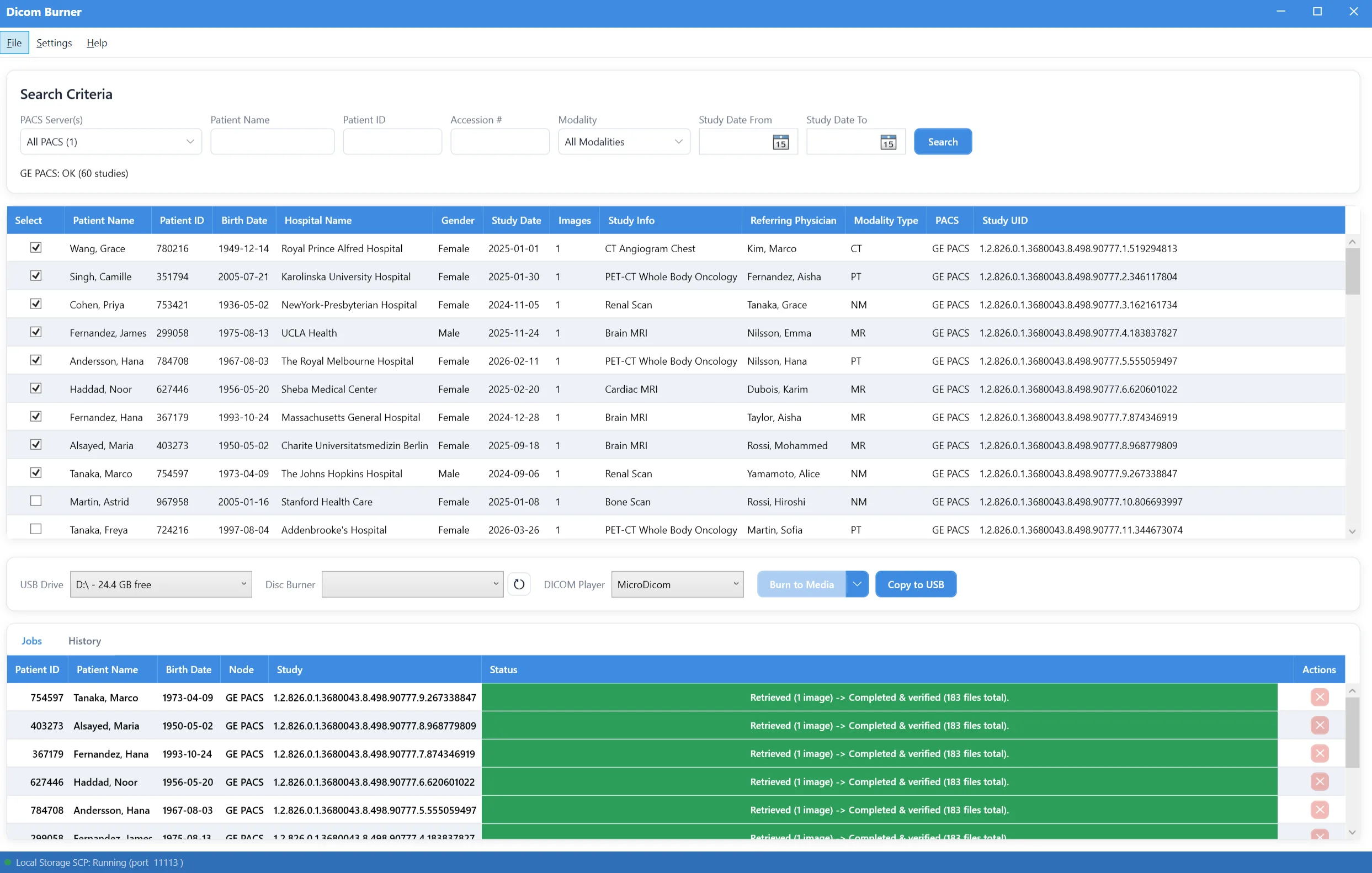
Track burn and copy jobs in real time
Every retrieve, burn-to-disc, and copy-to-USB operation runs through a visible job queue with per-study progress and status messages, so you always know what succeeded, what's in progress, and what needs attention.

Clear success and failure status on every job
Completed, in-progress, and failed operations are color-coded with a plain-language status message, so a failed USB copy or verification error is obvious at a glance instead of buried in a log file.
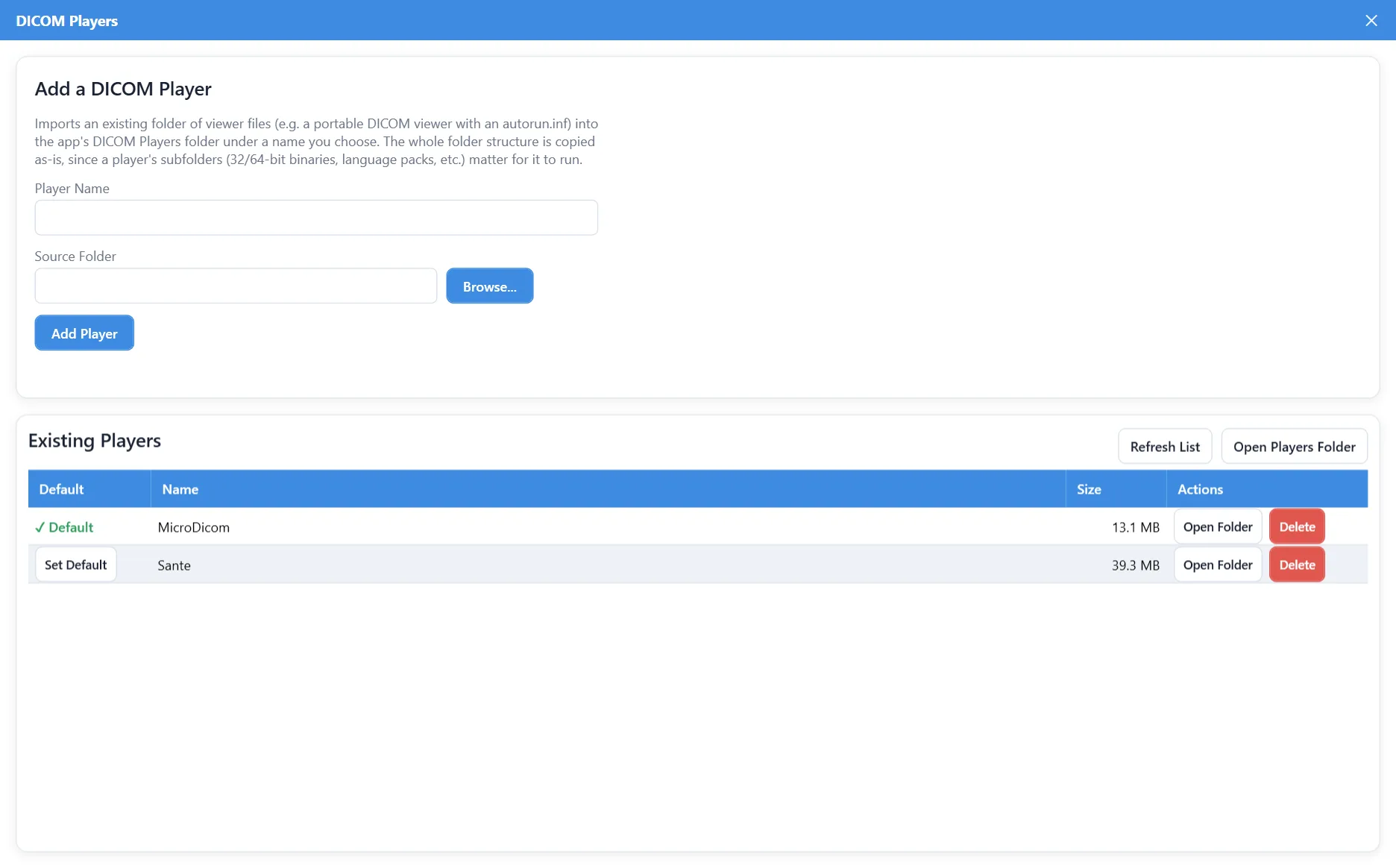
Bundle a free DICOM viewer on every disc or USB drive
Manage which portable DICOM viewer gets copied alongside the study on burned discs and USB drives, so recipients can view the images immediately without installing anything themselves. Import any portable viewer folder, set a default, and see each player's size at a glance.
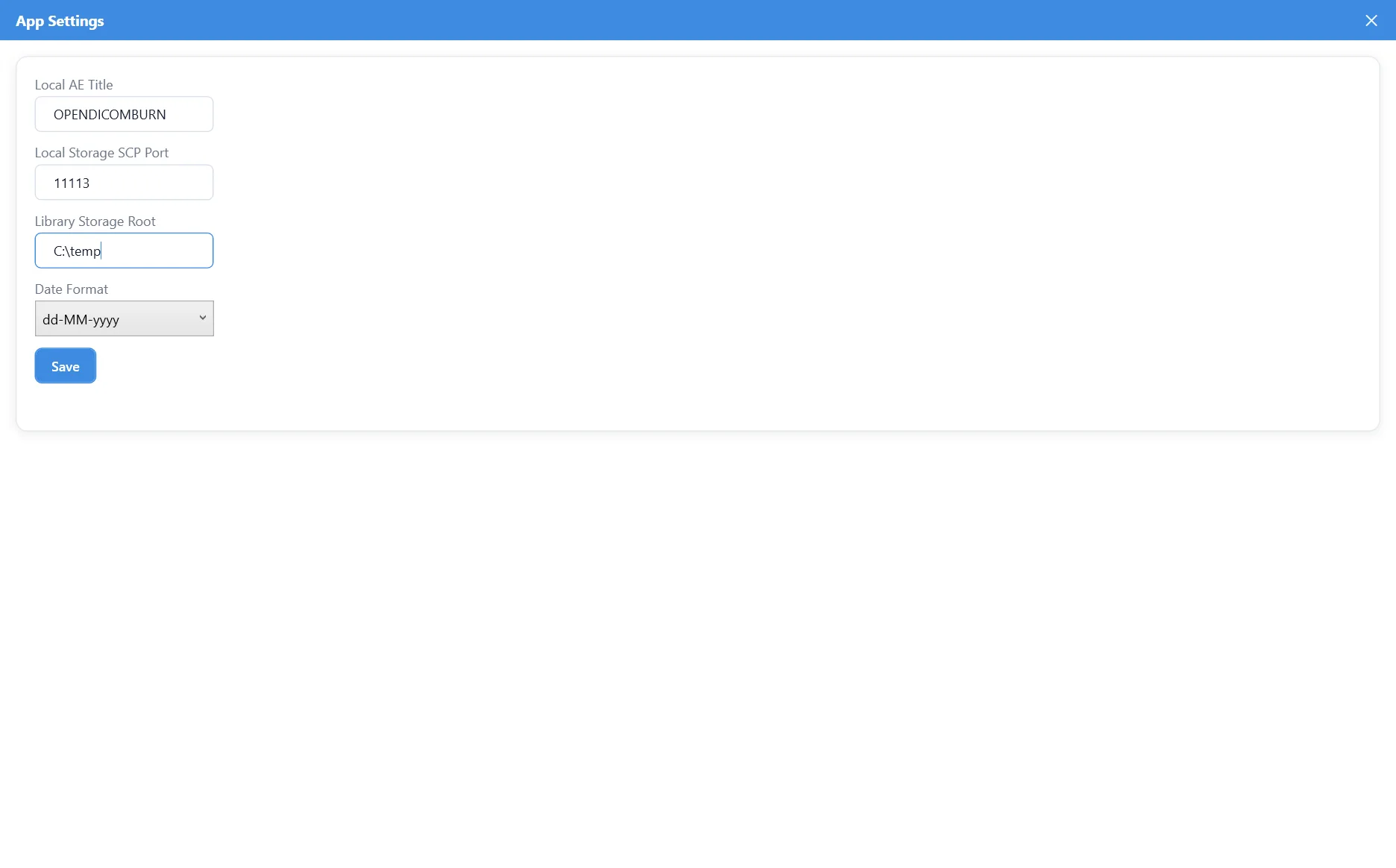
Simple, focused application settings
Set your local AE Title, the port DICOM Burner's built-in Storage SCP listens on for C-MOVE retrievals, where retrieved studies are stored, and your preferred date format — everything else just works out of the box.